How it works
From zero to live in under fifteen minutes.
Pick a ready-made notification, use the guided builder, or connect to an existing Salesforce Flow. Your org. Your process. No developer required.
Get started in minutes
Thirty-plus ready-made notifications. Pick one, hit Build, and you're live.
Choose from a library of notifications across sales, service, and operations. Act On It configures everything. Most teams are live in under fifteen minutes.
30+ ready-made notifications. Select, build, and go live in seconds.
Any alert. Any process. Any object.
Build your own, in minutes.
Any Salesforce object, any business process, any scenario — sales, service, ops, HR, finance. Endless possibilities. Create one actionable feed of what matters, in minutes.
Point and click
A visual builder designed for speed and creativity. Configure what to watch, who to tell, and exactly how it reaches them. From idea to live in minutes.
Step-by-step builder. No code required.
Already using Flow?
Already building in Flow? Add one action and Act On It handles the rest — notification design, delivery, one-click actions.
One field connects Act On It to any Flow.
What good looks like
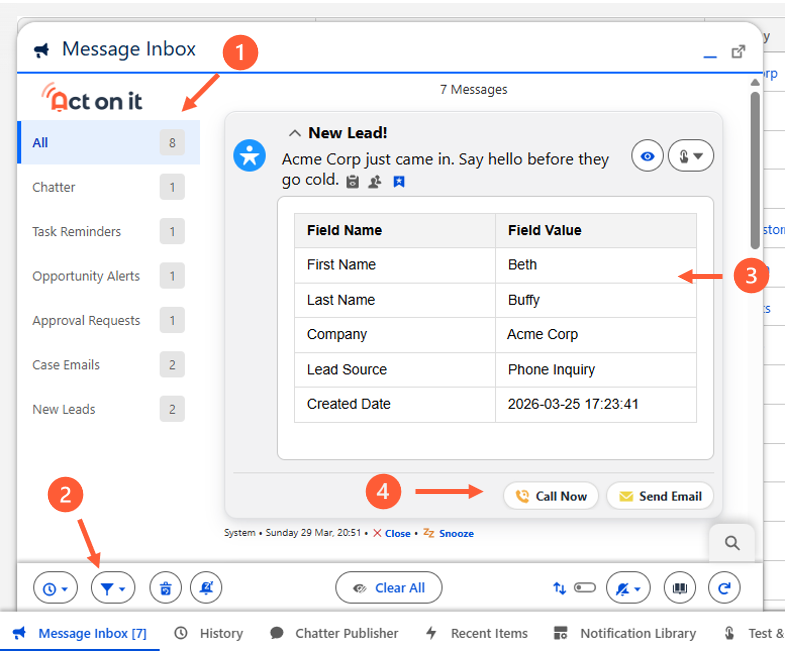
Everything in one place. Act without navigating away.
-
1
A unified inbox for every alert and reminder.
One place to see everything that needs your attention.
-
2
Filters and controls that let teams tune what they see.
Cut through the noise, choose how you're notified, opt out of unhelpful alerts.
-
3
Notification cards with the right context baked in.
Everything you need to prioritize and act is already there. No clicking through to find out more.
-
4
One-click action buttons that keep users in flow.
Save, close, snooze, or act. Done in a click, without losing your place.
Your inbox. Your rules.
How it compares
Salesforce notifications vs Act On It
Salesforce tells you what happened. Act On It tells you what needs to happen next.
| Capability | Native Salesforce | Act On It |
|---|---|---|
| Proactive / absence-based alerts | ✕ Reports require manual checking. No alerts fire automatically when something fails to happen. | ✓ Fires when a condition is met or when nothing has happened by a defined deadline. |
| Unified inbox | ✕ Alerts scattered across email, Chatter, and the bell icon with no single organised view. | ✓ One inbox for every alert and notification, inside Salesforce, persistent, searchable, and filterable. |
| One-click actions | ✕ Navigate to the record to take action. Notifications are one-way. | ✓ Act directly from the notification. Custom actions configurable per notification type. |
| Inline page prompts | Salesforce has In-App Guidance for walkthroughs, but no data-driven prompts that respond to record conditions. | ✓ Prompts appear on the record itself when action is needed, based on record context and conditions. |
| Mobile alerts | ✕ Salesforce mobile push only, with no per-notification-type control over delivery. | ✓ Mobile push via the native Salesforce app, configurable per notification type. Full inbox on mobile. |
| Notification delivery methods | ✕ Bell icon and email only. No way to match delivery method to urgency or let users choose what works for them. | ✓ Nine delivery methods including in-app inbox, pop-ups, sound prompts, mobile push, and email. Configurable per notification type. |
| Self-service configuration | ✕ Every change requires an admin or developer with Flow expertise. Sprint dependency for every new notification. | ✓ Admins build and manage notifications without code in minutes. Flow integration available for complex logic. |
| User personalisation | ✕ No control over which alerts you receive or how they are delivered. | ✓ Users choose how and when they are notified, within admin-defined boundaries. |
| Delivery and engagement reporting | ✕ No visibility into whether alerts were seen or acted on. | ✓ Delivery rates, engagement, and speed of response — tracked automatically per notification type, broken down by team and user. PDF export included. |
Ready to see it in your org?
One notification type, free forever. Most teams are live in under fifteen minutes.